Debugging
Xdebug
Xdebug is an extension for PHP, and provides a range of features to improve the PHP development experience.
Vortex comes with Xdebug pre-installed and configured for local development thanks to Lagoon images.
Xdebug is also configured to work in coverage mode, allowing to run tests with code coverage enabled.
➡️ See PHPUnit
Usage
Xdebug is disabled by default. Run the following command to enable it:
- Ahoy
- Docker Compose
ahoy debug # Restart containers with Xdebug enabled.
XDEBUG_ENABLE=true docker compose up -d cli php nginx # Restart containers with Xdebug enabled.
Run the following command to disable Xdebug:
- Ahoy
- Docker Compose
ahoy up # Restart containers with Xdebug disabled.
docker compose up -d cli php nginx # Restart containers with Xdebug disabled.
CLI
Running PHP from the command line with Xdebug works the same way as debugging a web page, except that you need to run it from within the container.
Note that some commands, like drush, may disable Xdebug by default for
performance reasons. You may need to explicitly enable it by providing
--xdebug flag to drush command. Check the documentation of the
command you are trying to run for more details.
IDE configuration
PhpStorm
By default, PhpStorm is configured to automatically interrupt on incoming
unmapped debug connections when Start listening for PHP Debug Connections
button (the one with a little bug) is activated. When interrupted, PhpStorm
will ask you to map the incoming connection to a project.
In order to use Xdebug on the project for the first time, you need to follow these steps (assuming you already have a fully working site):
-
Install Xdebug helper extension for your browser:
- Chrome Xdebug Helper by JetBrains extension.
- Firefox Xdebug Helper by JetBrains extension.
- Edge Xdebug Helper by JetBrains add-on.
-
Enable Xdebug in your browser (see instructions for your extension/add-on).
-
Set a breakpoint in your IDE.
index.phpin your web root is a good place to start. -
Run
ahoy debugorXDEBUG_ENABLE=true docker compose up -d cli php nginxto enable Xdebug. -
Refresh the page in your browser.
-
PhpStorm will stop on your breakpoint and will ask you to map the incoming connection to directory in your project. This is because the code runs in the container, which qualifies as a remote server. You need to "tell" Xdebug where to find the code on your local machine that corresponds to the code running in the container. You would need to do it once and PhpStorm will remember the mapping.
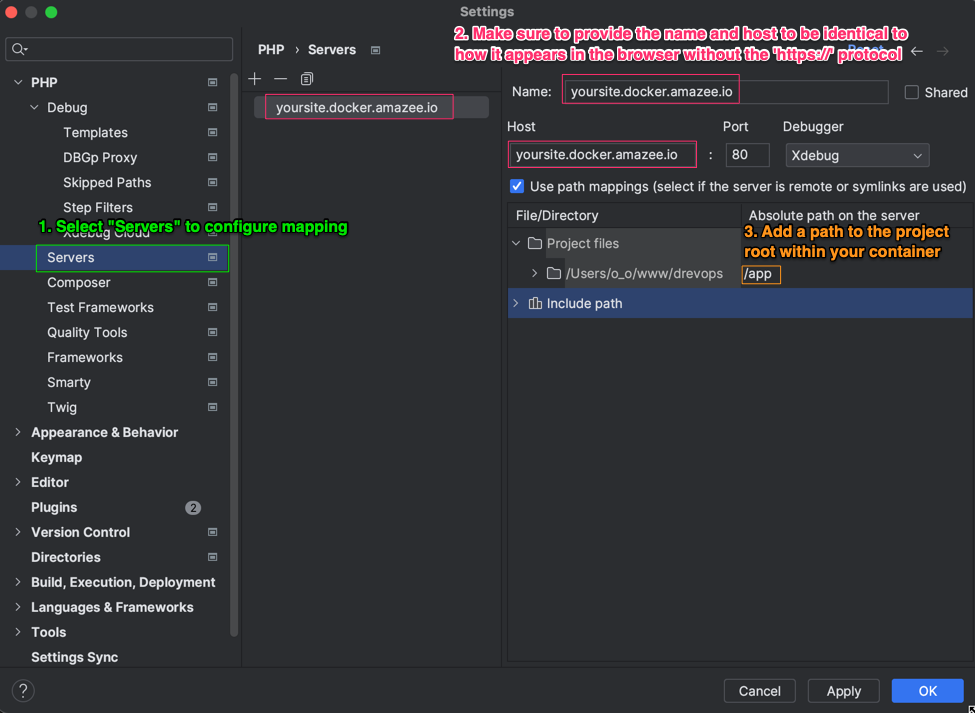
For more information see the following resources:
- https://www.jetbrains.com/help/phpstorm/configuring-xdebug.html#debugging-with-phpstorm
- https://docs.lagoon.sh/using-lagoon-advanced/setting-up-xdebug-with-lagoon/
Tips and tricks
Once your first Xdebug session is set up, you can adjust some of the Debug configurations in the PhpStorm IDE to make your life easier:
- Disable the following options:
Break at first line in PHP scriptsForce break at first line when no path mapping specifiedForce break at first line when a script is outside the project
- Increase the number in
Max. simultaneous connectionsto5or more. This will prevent hidden debug session being "stuck" without being visible in the IDE.
Testing authenticated pages with curl
Use curl with session cookies to simulate manual testing of pages that require
authentication (admin pages, protected routes) without opening a browser. This
is for ad-hoc debugging only - automated testing should use Behat or PHPUnit.
When to use
- Quick ad-hoc debugging of admin page errors (500 errors, permission issues)
- Investigating issues without spinning up a browser
- Verifying page content during troubleshooting
- One-off checks that don't warrant a formal test
Step-by-step process
- Ahoy
- Docker Compose
# Step 1: Get the site URL from project info
ahoy info
# Note the URL (e.g., http://your-project.docker.amazee.io)
# Step 2: Get a one-time login URL
ahoy login
# Output example: http://your-project.docker.amazee.io/user/reset/1/1234567890/abc123/login
# Step 3: Authenticate and save session cookies
# Replace LOGIN_URL with the full URL from Step 2
curl -k -c .data/cookies.txt -L "LOGIN_URL"
# Step 4: Access any authenticated page using saved cookies
# Replace SITE_URL with your site URL from Step 1
curl -k -b .data/cookies.txt "SITE_URL/admin/content"
# Step 5: Check for specific errors in page output
curl -k -b .data/cookies.txt "SITE_URL/admin/content" | grep -iE "(error|exception|warning|notice)"
# Step 1: Get the site URL from project info
docker compose exec cli ./vendor/bin/vortex-info
# Note the URL (e.g., http://your-project.docker.amazee.io)
# Step 2: Get a one-time login URL
docker compose exec cli drush uli
# Output example: http://your-project.docker.amazee.io/user/reset/1/1234567890/abc123/login
# Step 3: Authenticate and save session cookies
# Replace LOGIN_URL with the full URL from Step 2
curl -k -c .data/cookies.txt -L "LOGIN_URL"
# Step 4: Access any authenticated page using saved cookies
# Replace SITE_URL with your site URL from Step 1
curl -k -b .data/cookies.txt "SITE_URL/admin/content"
# Step 5: Check for specific errors in page output
curl -k -b .data/cookies.txt "SITE_URL/admin/content" | grep -iE "(error|exception|warning|notice)"
Curl flags reference
| Flag | Purpose |
|---|---|
-k | Ignore SSL certificate errors (required for self-signed local certs) |
-c FILE | Save cookies to FILE after request |
-b FILE | Send cookies from FILE with request |
-L | Follow redirects (required for login flow) |
Important notes
- Cookie storage: Always use
.data/directory - it is gitignored - Session expiry: Cookies expire after session timeout; regenerate as needed
- Login URL format:
http://SITE/user/reset/UID/TIMESTAMP/HASH/login - One-time use: Login URLs from
ahoy logincan only be used once
Container debugging
# Check container status
docker compose ps

# View container logs
docker compose logs [service_name]
# Examples:
docker compose logs cli
docker compose logs mariadb

# Access container shell
docker compose exec cli bash
docker compose exec mariadb mysql -u drupal -p drupal